

Administration – LNAAT
Ngā mahi whakarite – LNAAT
This guide walks you through the key set-up steps to effectively test your learners’ numeracy skills.
This guide walks you through the key set-up steps to effectively test your learners’ numeracy skills.
1. Getting started
To access the Literacy and Numeracy for Adults Assessment Tool (LNAAT), your organisation will need to:
- Decide on an organisation administrator and key contact.
- Complete the LNAAT Acceptable Use Agreement form, and send it to the Customer Contact Team for processing. (Contact details are on the form.)
- Apply to the Ministry of Education for an Education Sector Logon (ESL) role as an organisation administrator of the LNAAT. (Note: It may be useful for your organisation to have two or more people holding this role.)
Your organisation will also need to apply to the Ministry of Education for ESL educator role/s for each staff member that will be using the LNAAT to assess learners.
Download an Acceptable Use Agreement Request form (PDF 229 KB).
Download an Education Sector Logon form (PDF 437 KB). (Contact details for processing are on the form.)
2. Roles
There are three roles that use the LNAAT: organisation administrator, educator (including restricted educator), and learner.
The organisation administrator role
Depending on the type of organisation, the organisation administrator may be a manager, an IT administrator, a department or faculty head, or a tutor. Organisations can decide to have more than one person with the rights of an organisation administrator in the LNAAT.
Organisation administrators are users of the system with special privileges relating to reporting, viewing users and reports, and creating organisational groups. An organisation administrator controls the access privileges of educators by creating organisational groups and assigning educators and learners to them.
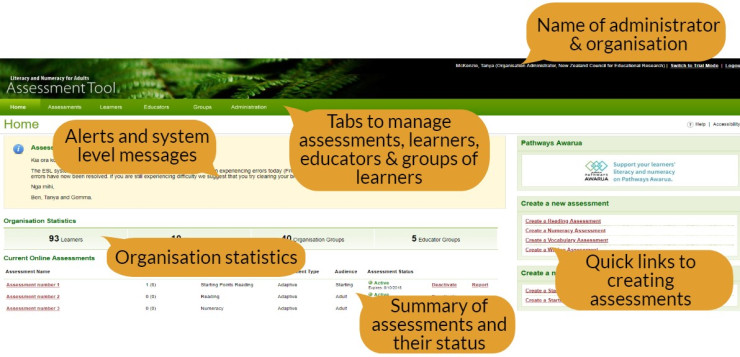
Organisation administrator key responsibilities:
Adding learners
Only organisation administrators can add learners to the LNAAT. There are two ways to do this:
- Upload from a CSV file. (You can download a sample template PDF and instructions below.) This is performed in the administration tab.
- Create the learners from within the Assessment LNAAT manually. (This is actioned in the learners tab.)
Creating groups
Organisation administrators are responsible for creating groups of learners within the LNAAT. Groups are essential for reporting and for allowing educators to see only the learners they are working with. There are two ways to do this:
- Upload from a CSV file. (You can download a sample template PDF and instructions below.) This is performed in the administration tab.
- Create the groups from within the LNAAT manually. (This is actioned in the groups tab.)
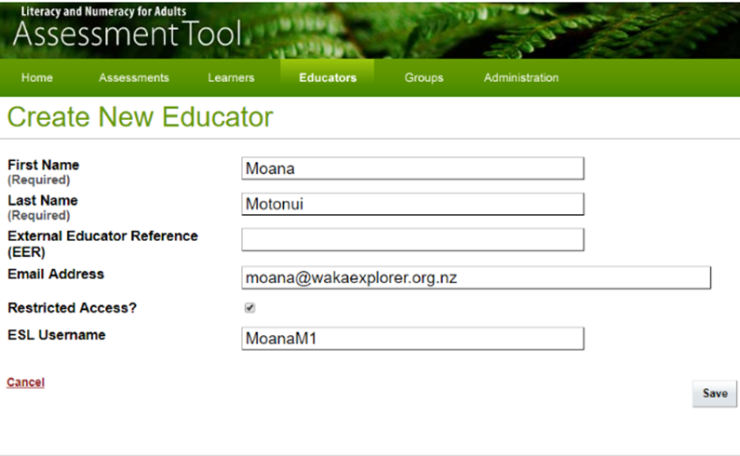
Creating educator profiles
- Creating educator profiles is a key function of the organisation administrator. Educators at your organisation will not be able to log into the LNAAT until their profile has been created. There are two ways to do this: Upload from a CSV file. (You can download a sample template PDF and instructions below.) This is performed in the administration tab.
- Create the educators from within the LNAAT manually. (This is actioned in the educators tab.) Note, if you do not know the new educator's ESL username, the system will generate an alphanumeric “one-off" Educator Code. The educator will then be required to enter this code the first time they attempt to log on to the LNAAT.
The educator role
An “educator” in the LNAAT is any person involved in creating and setting assessments for the learner. Depending on the type of organisation the educator may be a tutor, teacher, lecturer, workplace trainer, assessor, or manager.
Educators are users of the system who set assessments for learners. They can use the grouping functions to group learners together (in educator groups) for assigning or reporting on assessments and can view reports on individuals and groups. Educators can only see learners and learner information in the system if they have been given access to that learner by the organisation administrator.
Educator key responsibilities are:
- create assessments, assign learners to assessments, and disseminate learner codes
- view learner reports
- create and maintain their own learner groups.
The learner role
Learners are users of the system who are being assessed. They have access to the LNAAT only to sit assessments and to view their assessment results.
3. Preparing your learners
Learners are entitled to know what is expected of them when sitting their assessment, and providers should discuss it with them.
Learners should be advised that there is no time limit for sitting their assessment and that their resulting report will be available to them immediately on completion. Assessments do not have to be completed in one sitting, and learners can return to the point they left off by re-entering their assessment code later if the assessment expiration date has not been reached.
Learners should also be reassured about the confidentiality of individual assessment reports and be advised who will have access to this information.
4. The LNAAT tabs: home, assessments, learners, educators, groups, and administration
The home tab allows you to view key information about the assessments that have been created and are currently active.
The assessments tab shows all the assessments that you are authorised to view. Unlike the home tab, you can view assessments that are retired and filter assessments by date and other criteria.
The learners tab lists all the learners you are authorised to view. Organisation administrators can view all learners, whereas educators can only view learners they are connected to through organisation groups.
The educators tab lists all the educator profiles created in the LNAAT. Only people with the organisation administrator role can view the educators tab. It is not visible when logged on to the LNAAT with another role.
The groups tab shows the groups you are authorised to view. Organisation administrators can view all groups, while educators can only see groups they are assigned to. Groups allow for learners to be grouped together to facilitate assigning them to assessments, and to allow for reporting on a group basis.
The administration tab serves only one function: the ability to upload a file of learner data into the LNAAT. Only people with the organisation administrator role can view the administration tab. It is not visible when logged on with another role.
5. Creating assessments
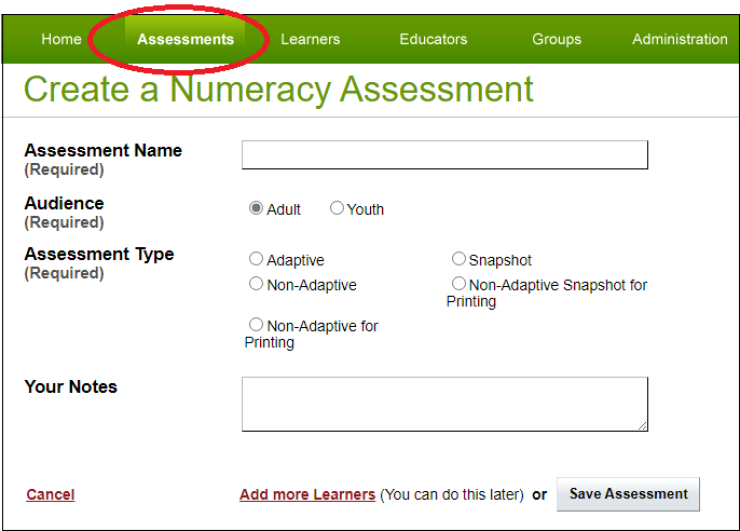
Assessments are created in the assessments tab by clicking “create a numeracy assessment” and completing the template.
6. Reporting
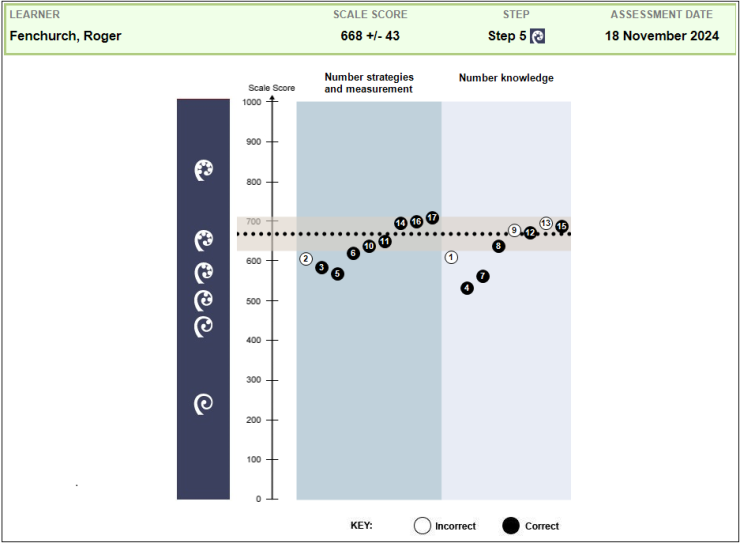
Individual Learner Reports are immediately available to the learner on completion of their assessment. Educators can access the report from within the relevant assessment in the assessments tab by clicking the “view details” link of each learner.
Need more help?
The Customer Contact Team is your first point of contact for any queries relating to accessing or using the LNAAT.
Email us at customerservice@tec.govt.nz or on 0800 601 301.
Comprehensive online help is also available from within the LNAAT. You can log a request for support to use the LNAAT with the Customer Contact Team from within the LNAAT – click “Log a Support Call”.
Key documents
- ESL logon request form (PDF 437 KB)
- Acceptable use agreement (PDF 229 KB)
- How to create and import bulk – learner upload csv file (PDF 330 KB)
- How to create and import bulk learner group – educator upload csv file (PDF 395 KB)
- How to create and import bulk learner – group upload csv file (PDF 371 KB)
- Learner only upload (CSV 547 bytes)
- Learner group assign upload (CSV 870 bytes)
- Learner group educators assign upload (CSV 1 KB)
- Ethnicity codes (PDF 53 KB)