

Troubleshooting – LNAAT
Te raparongoā – LNAAT
This page provides troubleshooting information for users of the Literacy and Numeracy for Adults Assessment Tool (LNAAT), including the most common technical support requests.
This page provides troubleshooting information for users of the Literacy and Numeracy for Adults Assessment Tool (LNAAT), including the most common technical support requests.
If you have a query or encounter a technical issue that is not covered, search the Technical FAQs – LNAAT.
You can also contact the Customer Contact Team at customerservice@tec.govt.nz or 0800 601 301.
Educator code and ESL issues
Educators
If you are prompted for an educator code when attempting to log on to the LNAAT, please contact your organisation administrator.
Organisation administrators
An educator profile can be created in the LNAAT either with or without an Education Sector Logon (ESL) username. This enables you to create educator profiles before the staff member’s ESL application is processed.
When you create an educator profile with an ESL username, the educator can log on directly to the LNAAT without being prompted for an educator code.
When you create an educator profile without an ESL username, the LNAAT automatically generates an alphanumeric code that an educator enters when logging into the LNAAT via ESL for the first time. If you include an email address in the educator profile, the educator will automatically be emailed their code. If you have not included an email address, you will need to check the educator profile details to obtain this code.
Please note that an educator code is only used once. When the educator enters this code when logging into the LNAAT, a link is created between the educator profile and the matching ESL profile. After this, the educator needs only their ESL username and password to access the LNAAT.
To find out how to create an educator profile for your staff, see Signing up – LNAAT.
Applying for an ESL
Organisation administrators and educators must log on to the LNAAT via ESL and will need to submit an ESL application to the Ministry of Education to create or update their ESL profile.
Download the ESL application form from Catalogue of tools & online services – Ministry of Education.
Send the completed form to the Ministry Contact Centre for processing (contact details on the form).
I’m an educator and I can’t view my learners
Educators and restricted educators can only see learners they are connected to through organisation groups. The organisation administrator is the person within your organisation who is responsible for uploading learners to the LNAAT, creating groups and linking both learners and educators to these groups.
If you cannot view any learners or groups within the LNAAT, contact your organisation administrator to have your group access updated.
For more information see The groups tab – LNAAT and The learners tab – LNAAT.
Problems with bulk upload files
If you are encountering issues in creating and/or uploading a bulk upload file, please see The administration tab – LNAAT.
If you cannot resolve your issue please contact the Customer Contact Team at customerservice@tec.govt.nz or 0800 601 301.
Error messages
Receiving an unsupported browser message
You may receive an unsupported browser message if the LNAAT detects that you are using a browser that has not been tested. You may be using an outdated browser, or a recent release that has not yet been tested. In either case, you can continue using the LNAAT, but you may experience problems with certain functions. If you are using an older browser, we recommend that you upgrade it to a more recent version.
Supported browsers are:
- Internet Explorer – version 6.x or higher
- Mozilla Firefox – version 2.x or higher (for Win XP), 3.0 or higher (for Mac)
- Opera – version 9.6 or higher for PC (Win XP)
- Safari – version 3.2 or higher (for Mac OS 10.5)
- Chrome – version 1.0 or higher.
Receiving an unknown organisation error message
When attempting to log on to the LNAAT, receiving the “unknown organisation” message indicates that your organisation has not yet been set up within the LNAAT. To apply for access, please send a completed LNAAT Acceptable Use Agreement application form to the Customer Contact Team at customerservice@tec.govt.nz.
Acceptable Use Agreement application form (PDF 229 KB)
Receiving an unknown role error message
When attempting to log on to the LNAAT, the “unknown role” message indicates that your ESL ID login has not yet been assigned the correct business role to access the LNAAT. To receive this role, please go to Catalogue of tools & online services – Ministry of Education.
Send an ESL Request for User Setup and Access form to the Ministry Contact Centre.
Receiving an "Oops!" error message
On occasion, you might find that some aspect of the LNAAT causes an error. This is usually a result of a particular and unusual set of circumstances, and it may result in the following screen being displayed. Don't panic: great care has been taken to ensure that, wherever possible, no data is lost if an error of this sort occurs.
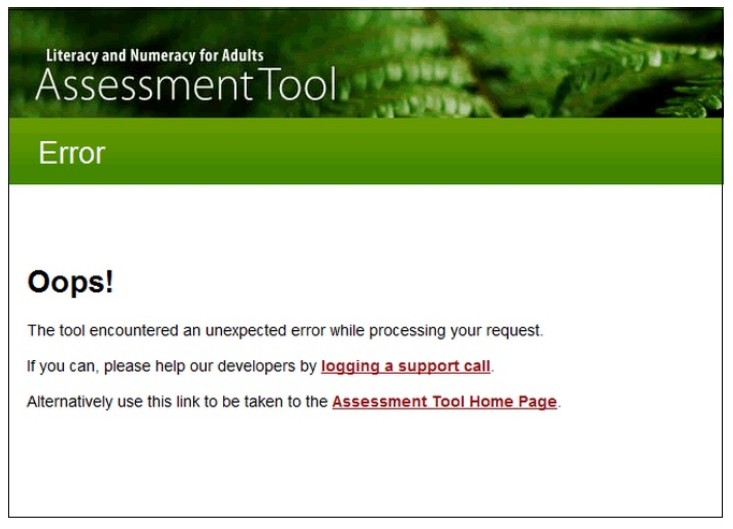
If you have time, please log a support call via the in-Tool Online Help or email the Customer Contact Team at customerservice@tec.govt.nz.
Your response will help the development team analyse and fix any issue, and you will receive a personal response to your message.
What is the website address (URL) of the live site?
The production/live site is https://assess.literacyandnumeracyforadults.com
If the computer crashes or a learner closes their browser while completing an online assessment, do they have to start from the beginning again?
They can resume the assessment at any time by re-entering the assessment code on the LNAAT login page, as long as it is within the life cycle of the assessment.
If learner assessment codes disappear from retired assessments, how do learners view assessment reports at a later date?
The creator of the assessment can regenerate the assessment codes of retired assessments by opening the assessment and clicking on Reset Assessment Code(s). The learner can then login with the new assessment code and go directly to the report.
An individual learner report is a snapshot of their capability at a given point in time. After the assessment is completed, we encourage the learner to print or save their report as a record of their assessment. This can be done by clicking on the PDF or CSV links in the top right-hand corner of the report window.