

Technical FAQs – LNAAT
Ngā pātai auau hangarau – LNAAT
Frequently asked questions about technical aspects of the Literacy and Numeracy for Adults Assessment Tool (LNAAT).
Frequently asked questions about technical aspects of the Literacy and Numeracy for Adults Assessment Tool (LNAAT).
On this page:
- Where can I obtain a Provider Code?
- Why can't I log in to the Literacy and Numeracy for Adults Assessment Tool?
- Why am I being asked for an Educator Code when I try and log in?
- I'm trying to get to the website, but it's loading the wrong page
- Can I use the LNAAT or sit an assessment on a tablet or smartphone?
- Is there a way to preview assessments?
- Are the stimulus text and questions for reading on the same page?
- Can we integrate the results from the LNAAT with our current dataset and assessment records?
- How is learner assessment data and demographic information kept secure within the LNAAT?
- If a learner leaves do I have to delete them? What if they come back?
- When creating a CSV bulk upload file, what happens if two learners share the same NSN or external learner reference?
- What is the website address for the Youth Assessment Tool?
Where can I obtain a Provider Code?
The Provider Code is the unique identifier for an organisation. You will need to include this code when applying for an Education Sector Logon (ESL) through the Ministry of Education.
If you do not know your Provider Code, contact the Ministry of Education contact centre on 0800 422 599 or email service.desk@education.govt.nz.
Why can't I log in to the Literacy and Numeracy for Adults Assessment Tool?
To access the LNAAT, all educators and organisation administrators must have an ESL (Education Sector Logon) username and password from the Ministry of Education.
An ESL is the authentication and authorisation mechanism that provides users with access to the LNAAT. You can read more about signing up to the LNAAT and download an ESL application form at Signing up – LNAAT.
The ESL system is supported by the Ministry of Education contact centre. You can contact them on 0800 422 599 or by emailing service.desk@education.govt.nz.
If you are still having problems logging in you can check your firewall, clear your cookies, or contact the Customer Contact Team for further assistance. Email customerservice@tec.govt.nz or call 0800 601 301 between 8am and 4pm weekdays.
Why am I being asked for an Educator Code when I try and log in?
An Educator Code is a six-character alpha-numeric code that may be required when an educator first logs into the LNAAT. It is a one-time-only code that connects the educator profile within the LNAAT to an ESL profile.
The Educator Code is only required when an educator's profile has been created in the LNAAT without including their ESL username details, or if they have not completed the educator profile at all. If you are being prompted to enter an Educator Code and do not have one, contact your organisation administrator. If they are unavailable please contact the Customer Contact Team at customerservice@tec.govt.nz or call 0800 601 301.
I'm trying to get to the website, but it's loading the wrong page
Occasionally you may try to go to the LNAAT login page (which looks like this) and get another page instead.
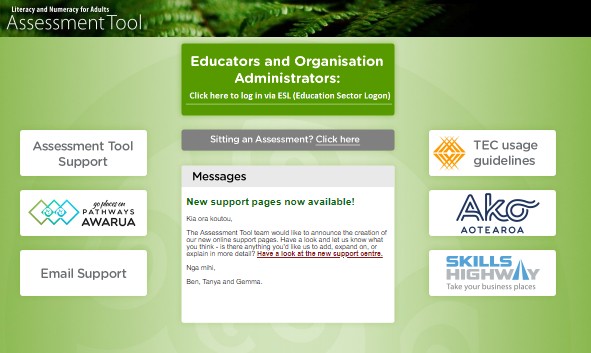
Try entering the correct URL: https://assess.literacyandnumeracyforadults.com/Login.aspx.
If this doesn't work and you are still seeing the wrong page, try clearing your browser cache. Instructions on how to do this can be found at How to clear your browser cache – wikiHow.
If neither of these options work, try altering the URL in your browser's toolbar. For example, this is the URL for the Youth page:

Delete “Youth” from the URL and press Enter. That should take you to the correct login page: https://assess.literacyandnumeracyforadults.com/Login.aspx.
Can I use the LNAAT or sit an assessment on a tablet or smartphone?
Learners can sit LNAAT assessments using a desktop computer, laptop or tablet. Starting Points Reading and Starting Points Listening assessment options are intended to be sat on a tablet with tutor/educator support as needed.
If you have any issues when sitting assessments online, please email us at customerservice@tec.govt.nz or call 0800 601 301.
Note: Assessments are not supported or recommended on smartphones.
Is there a way to preview assessments?
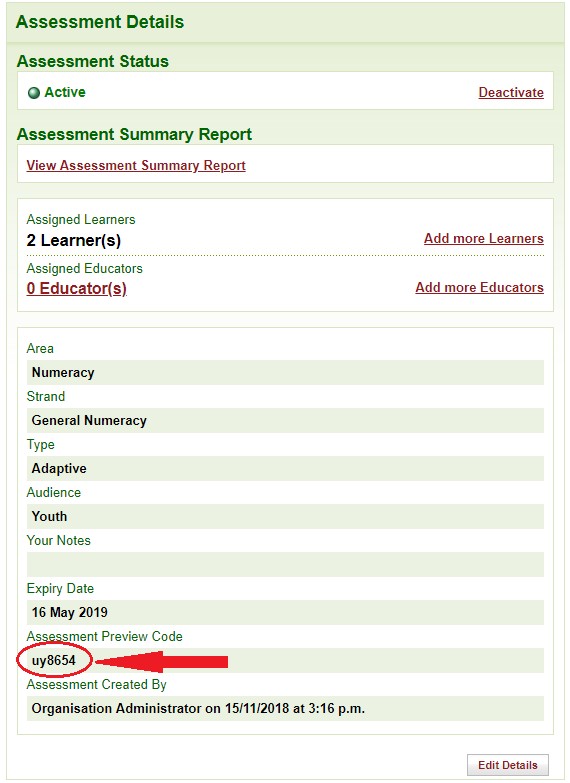
Educators and organisation administrators can preview assessment content using a preview code. When you create an adaptive or online assessment, a preview code is generated. This code can be used to sit an assessment as if you were a learner. Please note that no data is saved when you use a preview code (although it does generate an end of assessment report), and you can use it more than once.
When entering a preview code a message is displayed onscreen confirming the assessment is a preview session only, and that no data will be saved. Learners should never be given preview codes to practise with or to replace genuine assessment codes.
Are the stimulus text and questions for reading on the same page?
This page explains how the reading assessment stimulus texts and questions are presented in the assessment, including their layout in both online and printed formats.
The stimulus for the reading questions appears on the left-hand side of the screen in the online assessment or the left-hand page of the printed booklet. In both cases the questions are on the right-hand side. However, Starting Points assessment questions and answers are orientated towards the centre of the page.
Can we integrate the results from the LNAAT with our current dataset and assessment records?
LNAAT results can be exported as a CSV file. Along with the assessment results, you can include other data such as the learner’s name, Student Management System (SMS) ID and National Student Number (NSN).
Depending upon the functionality of your SMS, you may be able to match the exported data with your current SMS dataset and import the LNAAT data. You can also export reports in a number of formats, and may be able to integrate them with your Student Management System.
If you would like to discuss the potential to integrate your SMS with the LNAAT please contact the Customer Contact Team at customerservice@tec.govt.nz or call 0800 601 301.
How is learner assessment data and demographic information kept secure within the LNAAT?
All traffic to and from the LNAAT is encrypted. The HTTPS protocol is used to transport all data between the student's browser and the servers on which the application runs. The servers – including the database – sit in a secure Tertiary Education Commission (TEC) data centre, which uses best-practice firewall configurations to minimise the likelihood of unauthorised access to learner information.
The “access and use of data” document (referred to in the LNAAT Acceptable Use Agreement) sets out the protocols for people using and supporting the LNAAT, and should address any privacy issues.
If a learner leaves, do I have to delete them? What if they come back?
Learners are removed from your organisation rather than being “deleted”. You can remove learners so they are no longer listed as an active learner (and displayed in the Learners tab).
We recommend that you review the learners loaded against your organisation and identify any who may have studied with you several years ago.
When removing learners, you can choose between:
- “Remove from organisation only” (learners stay in any groups they are assigned to. Best option for removing past learners who have sat assessments)
- “Remove from organisation and groups” (removes the learner from any groups they belong to as well as from the organisation. Suggested for learners who withdraw before sitting assessments).
You can search for learners who have been removed using either option. There is also a function to reinstate learners if they re-join your organisation in the future.
When creating a CSV bulk upload file, what happens if two learners share the same NSN or external learner reference?
If two users in the same upload file have the same NSN number, the upload process will produce an error report showing you the learner records that are causing the error.
Two learners can share an external learner reference (ELR), except in exceptional circumstances where you are using the ELR as the unique identifier instead of the NSN. In that case, the upload process will produce an error report.
What is the website address for the Youth Assessment Tool?
The Youth Assessment Tool can be found at: https://assess.literacyandnumeracyforadults.com/YouthLogin.aspx.